Memjet Mech Error Guide
Common Mech Errors on Memjet Label Printers and How to Resolve Them
If you’re dealing with Common Mech Errors on Memjet Label Printers, this Memjet Mech Error Guide walks through what the most frequent Mech error codes mean, why they happen, and how to resolve them so you can get back to printing as quickly as possible.
Mech 01 – Paper Path / Data Underrun
What it means: Mech 01 is a paper path error that often happens when the printer starts printing before the full job has finished spooling. The printer can “outrun” slowly delivered jobs, especially those with serialization, database links, very large files, or complex graphics.
It can also be triggered if the paper path motor overheats.
Steps you can take:
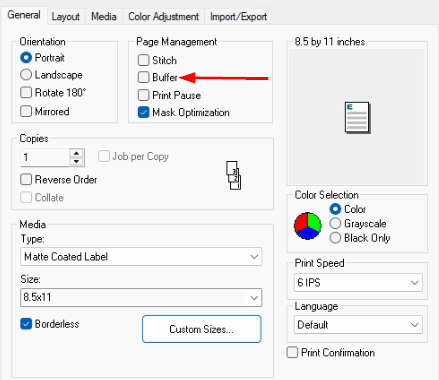
- Enable the “buffer” option (checkbox) on the driver’s “Page Management” (on the “General” tab) settings so the job is fully loaded before printing – see image below
- Close unneeded applications and background processes on the PC or network device sending the job.
- Verify that the label size and media parameters in the driver and software match the actual label stock.
- In your label software, make sure the artwork fits on the template with no elements hanging off the edges (“wings”).
- Consider reducing the file size for very large images
Expand for example of “Buffer” Setting
Mech 03 – Service Station Issues
What it means: Mech 03 indicates a problem somewhere in the service station assembly. Because there are several moving parts and sensors involved, the printer’s log file is very helpful for a technician to review.
Steps you can take:
- Confirm that any shipping restraints or cardboard inserts in the service station area were removed during the original installation.
- Power off, then carefully remove and reinsert the service station straight to ensure it is not crooked or mis-seated.
- Check for signs of a failed or failing gear or motor in the service station area (unusual noises, grinding, or binding).
- If you heard a loud noise when the error appeared, or if you cannot remove the service station, contact your Memjet printer reseller or service provider.
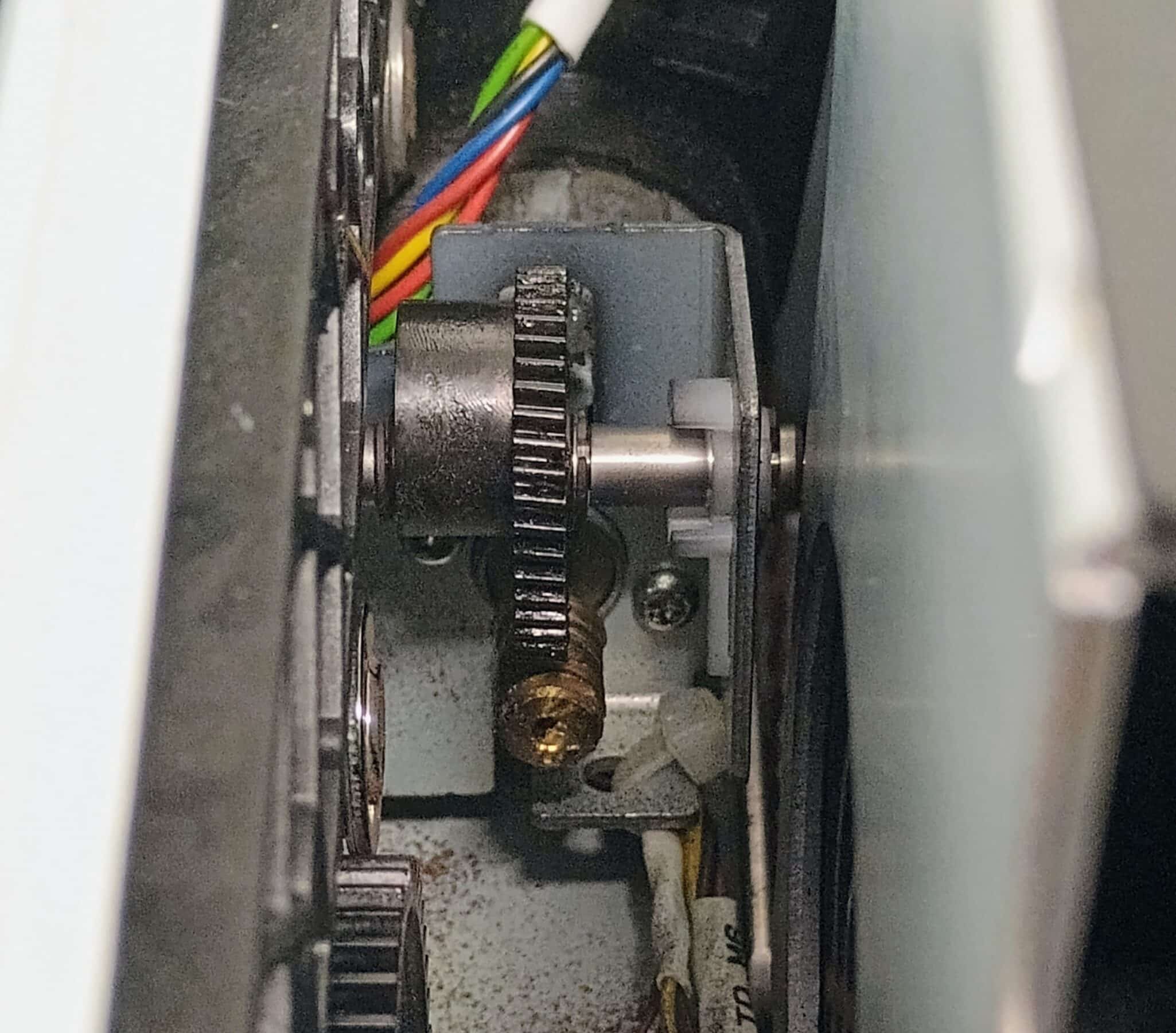
Expand to see Service Station Drive Gear
When in doubt, review the service documentation for your specific Memjet printer model or share the log file with a qualified technician. See the bottom of this page for instructions for creating a log file
Mech 04 – Dual Pinch Valve / Sensor
What it means: Mech 04 points to the dual pinch valve or a related sensor in the ink delivery system that has failed or is starting to fail.
How to proceed:
- Reboot the printer. This is a temporary fix but can get you back up and printing temporarily until service can be arranged.
- Diagnosis usually comes from reviewing the printer’s log file and onboard diagnostics. See the bottom of this page for instructions for creating a log file
- The typical fix is to replace the dual pinch valve or the associated sensor, depending on what the diagnostic log indicates.
Mech 05 – Cutter Module
What it means: Mech 05 is a rare error related to the cutter module at the front of the paper path. In many cases, the printer will instead show a “Jammed Cutter” or similar message.
Steps you can take:
Open the cutter area and clear any label scraps, dust, or debris.
- Inspect and gently clean the cutter sensor and the area around the blade.
- If the error continues, contact us for further instructions on repairing or replacing the cutter module.
Mech 06 – Media Drive / Paper Path Motor
What it means: Mech 06 is a critical paper path error related to moving the media through the printer. When this appears, printing is usually not possible until hardware is repaired.
Possible reasons:
- The transmission belt driving the media may be worn out or damaged.
- The paper path motor may be failed, faulty, or overheating.
- The motor’s cooling fan may have failed, causing overheating and shutdown.
Next step: This error typically requires hardware service. Contact us to review your log file and for options related for repair.
Mech 07 – Ink Pump (Peristaltic Pump)
What it means: Mech 07 is related to the ink delivery system, specifically the pump rather than the valve.
Steps you can take:
- In most cases, the fix is to replace the peristaltic ink pump after confirming via the printer’s diagnostic tools or log file. Contact us a message for repair instructions.
Mech 08 – Wiper Roller / Firmware
What it means: On many systems with current firmware and drivers, Mech 08 is rare or may not appear. If you still see this error, the printer may be running an older revision or have a wiper-related issue.
Steps you can take:
- Check with us for available firmware and driver updates and apply the latest recommended versions.
- Replace the wiper roller assembly on the service station if indicated by diagnostics or if visibly worn.
Mech A, B, and C – Front Paper Path Sensors
What they mean: Mech A, B, and C are associated with different sensors near the front of the paper path. These often show up if you use features like “Sheets per Cut” or “Roll to Cut,” especially when there is dust or label debris in the path.
What these mean:
- Mech A: Output pinch motor has failed, or a sensor on the output module is faulty. See below for initial troubleshooting steps you can take.
- Mech B: Paper path exit sensor is dirty, blocked, misaligned, or needs replacement. See below for initial troubleshooting steps you can take.
- Mech C: Often appears when the cutter fails to cut; the output pinch sensor may be blocked, dirty, misaligned, or faulty. See below for initial troubleshooting steps you can take.
This error usually occurs when the service sled is askew, and can’t move correctly. Please try reseating the service station. The following link shows how to eject and reseat the service station automatically:
If the station doesn’t eject automatically, you’ll need to follow the next guide, which shows how to manually eject the station:
The manual ejection guide shows how to rotate the copper lifter motor gear with your finger, but that takes a long time. You can rotate it a lot quicker if you have a T-10 screwdriver long enough to insert into the end of the gear, as is shown in the following link:
The lifter arms must be lowered entirely before reinserting the service station (as shown in the video links). If you put the station back in with the arms up, they may break, and the unit will need servicing. Please let me know if you have any questions or if this doesn’t help.
How to Generate a Log File
Your printer’s log file can be very helpful in determining the root cause of many issue. Below are the steps to created one.
- Ensure your printer is powered on
- Open the printer’s “Support Tools” (see image below)
- Select the “Printer Info” link (see image below)
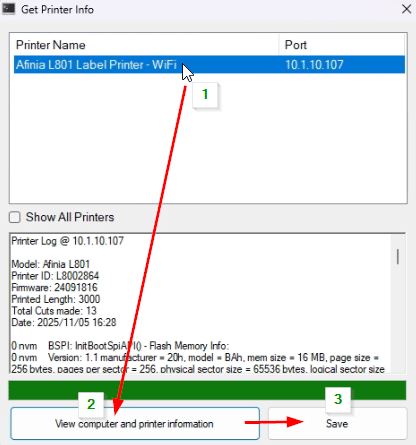
- Follow these 3 steps:
a. Click the printer name you wish to create a log file for
b. Select the “View computer and printer information” button
c. Click the “Save” button once the green bar fills the bottom of the screen. (See image below) - Send the saved text file to us for review
Image: Starting “Support Tools”
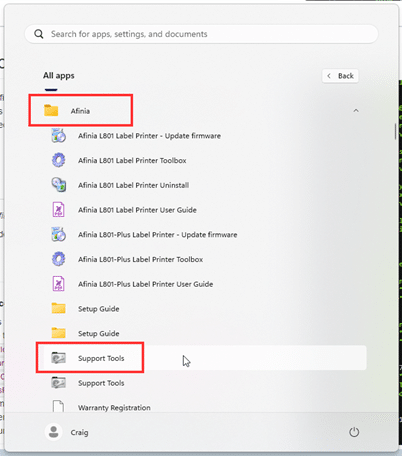
Image: Get Printer Info

Image: Steps 4a-4c