Improving Black Output on the Afinia L801 Plus
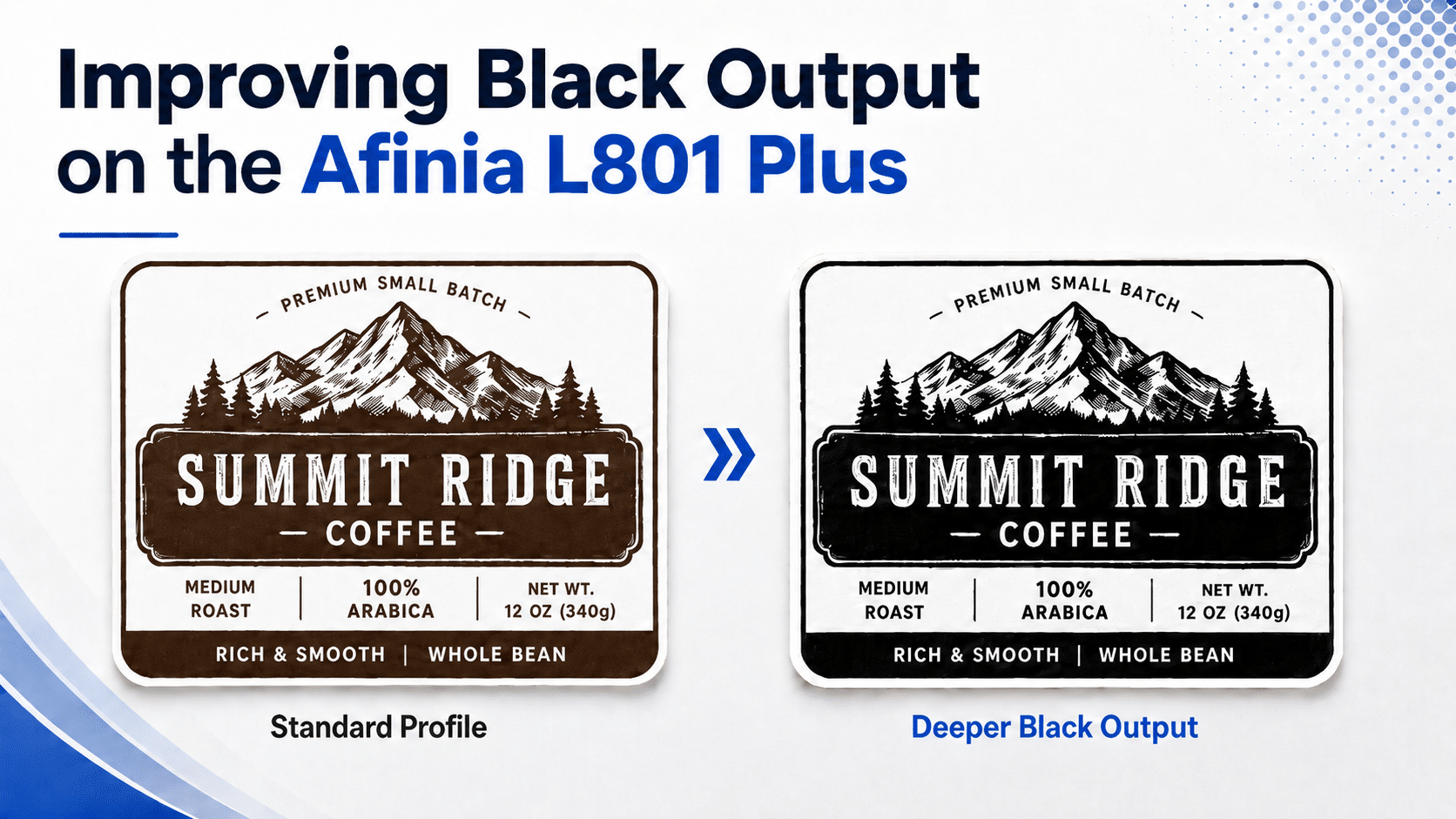
The Afinia L801 Plus is a strong production label printer, but many users run into one frustrating limitation: it can struggle to produce deep, rich black colors, especially on certain media types such as matte inkjet label materials.
In many cases, this issue is not caused by the printer hardware itself. It is often related to the media profiles being used with the printer. The Afinia-supplied media profiles may produce acceptable results for many applications, but they do not always deliver the darkest or richest black output possible on every label material.
Why Blacks May Look Washed Out
Before replacing or testing alternate media profiles, it is helpful to understand why black output can vary so much from one label job to another. The same artwork can look very different depending on the label material, media coating, driver settings, and print profile being used.
Black density can vary depending on several factors, including:
The Type of Label Media Being Used
The label material itself has a major impact on how dark or rich black areas appear after printing. Matte paper, matte BOPP, gloss BOPP, semi-gloss paper, clear film, metallic materials, and other specialty media all interact differently with Plus inks.
Matte materials tend to absorb more ink, which can cause black areas to look softer, lighter/duller, resulting in a slightly brown appearance instead of deep black. Gloss and film-based materials may hold the ink closer to the surface, which can sometimes create a sharper and darker appearance.
Because of this, black output should always be evaluated on the exact media you plan to use for production. A profile that looks good on one label stock may not produce the same result on another.
The Media Coating and Ink Absorption
Inkjet label media uses special coatings designed to receive and hold ink. The way the coating absorbs ink plays a huge role in the final output of your labels.
Different coatings absorb inks at different rates. Ink absorption depends on factors too numerous to cover here, but depending on how these coatings are applied black areas may lose density and appear washed out. Changing media profile settings may increase the amount of black color applied to the label and help with the darkness of it. However, too much ink on certain coatings can also lead to longer dry times, smearing, or fuzzy/muddy details.
This is one reason media profiles matter. A profile controls how much ink is applied and how the printer handles color output for a specific type of media. When the profile does not match the media well, black output may not look as rich as expected.
The Selected Print Profile
The print profile tells the printer how to manage color, ink levels, and media behavior. On the Afinia L801 Plus, the Afinia-supplied media profiles may work well for many general applications, but some users find that they do not always produce the darkest black output possible.
Using an alternate OEM media profile may change how black and composite colors are handled. In some cases, this can result in deeper, richer black output, especially on materials where the standard Afinia profile appears too light or brown.
That said, changing profiles is not a guaranteed fix. The best profile depends on the specific media, artwork, and print conditions. Users should test multiple profiles before making any permanent workflow changes.
Print Quality Settings
Print quality settings can also affect how black areas appear. Higher quality settings may apply ink differently, slow the print process, or improve the smoothness and density of certain image areas.
In some situations, increasing the print quality may help improve black coverage and overall image depth. In other cases, it may not solve the issue if the media profile or label material is the limitation (as mentioned above).
When testing black ink output, it is a very good idea to print the same artwork using each profile option and compare the results using the same media. This makes it easier to identify whether the issue is related to the print mode or the profile being used.
Color Management Settings in the Driver or Design Software
Color management settings can also impact how black ink is output. Depending on your print workflow, color may be managed by the printer driver, design software, RIP software, or a combination of these.
If multiple programs are trying to manage color at the same time, the results can become unpredictable. Blacks may print lighter than expected, shift toward brown or gray, or vary from one file to another. Special attention should be given to printing directly from an application like Illustrator which can have many color management options included in the print interface.
For best results, users should review how color is being handled in their print workflow. This includes checking the printer driver settings, software color settings, file color mode, and any embedded color profiles in the artwork. Our preferred print workflow involves exporting our artwork files to vector PDFs and using Acrobat (or similar application) to print our labels. That tends to be the cleanest approach and eliminates or lessons other color management variables.
Testing Before Downloading and Installing Profiles
Because so many variables affect black output, we recommend treating these OEM media profiles as a testing option rather than a guaranteed correction. The profiles may help improve black density in certain situations, but results will vary depending on your media, artwork, and print setup.
Here is a summary of possible reasons as stated in more detail above.
- The type of label media being used
- The media coating and ink absorption rate
- The selected print profile
- Print quality settings
- Color management settings in the driver or design software
Matte media is especially prone to lighter or less saturated black output because ink often absorbs differently than it does on gloss, semi-gloss, or specialty coated materials.
Using OEM Media Profiles for Deeper Blacks
Some users have found that using the default OEM media profiles, rather than the Afinia-specific media profiles, can help produce deeper black output on certain materials.
These OEM profiles may add to or replace the existing Afinia media profiles available in the printer driver. Once installed, they may provide additional profile options that can be tested to determine whether they improve black density for your specific label material and artwork.
Recommended Approach
- Back up your existing profiles and printer settings before making changes.
- Download the ZIP file containing the OEM media profiles.
- Review the included instructions carefully before installation.
- Install the profiles only if you are comfortable making changes to your printer driver or media profile setup.
- Run test prints on the exact media you plan to use.
- Compare the results against your current Afinia profiles.
- Keep the profile that produces the best results for your specific application.
Need Help Choosing Label Media?
If you are having trouble getting the print quality you want from your Afinia L801 Plus, the media itself may also be part of the issue. Different matte, gloss, BOPP, paper, and specialty inkjet materials can produce very different results, even when using the same printer and same artwork.
Chicago Color Label can help you review your label material options and recommend media that may be a better fit for your application.