The Winter Struggle: Maintaining Print Quality in Dry Environments Leave a comment
As winter sets in, Memjet (Afinia and VIP) and HP (Afinia L502) printhead owners face unique challenges due to very dry air caused by cold temperatures and forced heating. The dry air and low humidity levels during this season can take a toll on printhead performance and lifespan, leading to issues like clogged nozzles, artwork streaking, and premature replacement of your printhead, (the most expensive consumable on your printer). In this post, we’ll delve into the impact of winter conditions on Memjet printhead life and explore effective strategies to counteract these effects.
Summary
Support calls about streaking and other printhead issues increase significantly in December and continue through March when most areas of the country are using furnaces, and other methods for heating their homes and offices. Nearly everyone can relate to the drier-than-normal air that we live with for several months out of the year. The dry air wreaks havoc with skin, static electricity, damage to wood flooring, and various health issues. If you are located in a region of the country with high elevation, you may encounter dry air conditions all year long. One customer in Colorado reported having an average relative humidity of 15% which is a long shot from Memjet’s recommended RH.
While you can’t keep your printhead from drying out by curling up in front of a fireplace with a good book and warm drink (unfortunately), we do have some solid tips on ways to keep your Memjet printhead happy during the long, cold winter months. Following are some tips in order of importance to ensure you have the best chance of maintaining the health of your printhead.
Install a properly sized humidifier
Humidification is extremely important during the winter. While people can survive winter’s dry air with little more than dry hands and chapped lips, Memjet printheads require a minimum relative humidity of 45%. Achieving this level of humidity in the winter requires some effort. Be sure to purchase a properly sized humidifier so the output is enough to effectively combat the warm, dry air constantly blasting out of the vents. If your humidifier is too small, you’ll never achieve the adequate level of humidification required to maintain a 45%+ RH level. The size of your room should dictate the size of the humidifier you’ll need. A very small room may only require a tabletop unit while a larger room or a room without doors that are open to other areas, may require one with a more substantial output.
One word of caution… don't be tempted to purchase a small humidifier and place it directly next to the printer. This may have unintended consequences. The proximity to the printer will make it difficult to regulate the humidity level and instead concentrate the humidity near the printer and have the reverse effect. We know because we've made this mistake! Moisture build-up and mineral deposits can form on surfaces of the printer (if using tap water without a softener) and media will absorb the extra moisture causing it to warp, making it unusable.
Finally, be sure to keep the humidifier filled and running 24/7. Also, purchase a good humidistat to measure the RH of your room frequently. You can make adjustments to the output of the humidifier or know if you need to purchase a larger one.
Print Regularly & Often
Most times this won’t be an issue. However, if you use your printer only once a week (or less), your printhead won’t be receiving the love it craves. Your printhead will require much more attention during the winter months than it will during the spring and summer.
If your company uses its printer at least 3-4 times per week, you can skip this section. However, if you find you’re using your printer much less, it’s essential to find other ways to keep it in use. The process of printing is another way your printhead stays hydrated.
Since we don’t use our showroom printers for production label runs, we can go several weeks without printing anything at all. For this reason, we keep a single roll of the inexpensive matte white, continuous 8.5″ wide paper media loaded in the printer at all times. We then have an 8.5×11 sample page file and we usually print 3-5 copies of this file every 3 days. This alone serves to keep our printheads healthy by not only hydrating the printhead nozzles with ink but also using the entire width of the printhead, which is another beneficial thing you can do.
If you don’t want to purchase a roll of media to print a test page regularly, you can alternatively remove the printhead and store it in the original orange cap and foil pouch it came in. We also recommend placing a damp paper towel (wet but not dripping) in the bag with it. Crumple the end of the foil and insert it into the original box with the “open” end facing the back of the box. Close the box and store it away until you are ready to use it again.
Modify Your Printer Settings
Your printer’s default options are set at the factory for optimal results under most conditions. However, these options can be modified to help combat extreme conditions such as extremely dry air or limited usage. The following descriptions are for Memjet printers only (Afinia L701-L901 & VIP 500-700). Epson printers have different mechanics and printhead technology that do not apply to the options below.
I’d like to clarify that these settings should only be changed in extreme cases. You might want to consult with us or Afinia support to determine if modifying these settings makes sense for your situation.
Mid Job Servicing Interval
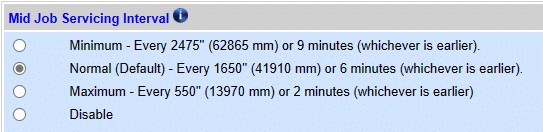
Location: Advanced Settings –> Advanced Settings 1
Mid job servicing is something that occurs at regular intervals during long print jobs. The default setting will cause the printer to pause printing and enter this servicing cycle every 6 minutes or every 1650 inches of media printed (whichever occurs first). Since the printhead is exposed to the air during printing, this setting ensures unused nozzles are kept hydrated during long printing jobs.
You can change this interval to be longer, but this is typically never recommended. You may instead choose a more aggressive setting to provide more hydration during colder months by selecting the “Maximum” setting. This changes the interval to every 2 minutes. This may be too often for larger print jobs, however. If so, leave this setting alone and move on to some of the other options below.
Keep Unused Printhead Nozzle Wet Setting (aka KWS)
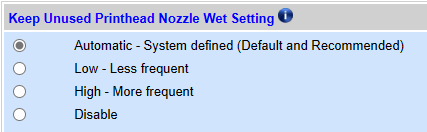
Location: Advanced Settings –> Advanced Settings 1
When printing, not every one of the thousands of nozzles are used to deposit ink. Because of this, there is a large portion of nozzles that are not getting used (hydrated) during the printing process (a time when the printhead is not capped and instead exposed to that warm, dry air). The KWS combats this by shooting a tiny dot of ink out of every unused nozzle during printing.

Example showing a magnified KWS dot pattern
If you look closely (or under magnification), you’ll see an extremely small pattern of colored dots on areas of white. This is the KWS in action! You might find that increasing this value from the default value of “Automatic” can increase your printhead life as well. However, it can also create a more visible pattern when you have large areas of white on your labels. We recommend experimenting with this setting to find an option that works well for you.
Additional Tips
Here are some additional tips and ways to resolve streaking caused by dirty or dry nozzles.
- Never turn your printer off unless you plan to properly store your printhead long term. This applies to every season, not just the winter months.
- Be sure to replace your wiper roller regularly. Old wiper rollers are like using a very dirty washcloth to clean something. A fresh wiper roller can do wonders for print quality in some cases.
- Streaking caused by dry nozzles may be resolved by running one or more printhead cleaning cycles.
- If you do encounter streaking that is not remedied by running the printer’s cleaning cycles, you may be able to revive the printhead using a manual cleaning outlined here.
Recap
Tackling the challenges of inkjet printheads in dry environments requires a multifaceted approach. By understanding the impact of low humidity on nozzle functionality and adopting effective remedies such as humidification, regular printer use, and best maintenance practices, users can combat streaking and ensure that their inkjet prints maintain the highest quality even in the driest conditions.
If you have any questions about the information covered here, need additional help or would like information on printers and printhead technologies not covered here (i.e. Afinia L502 & Epson printers). Please contact us by phone or by using the form below!